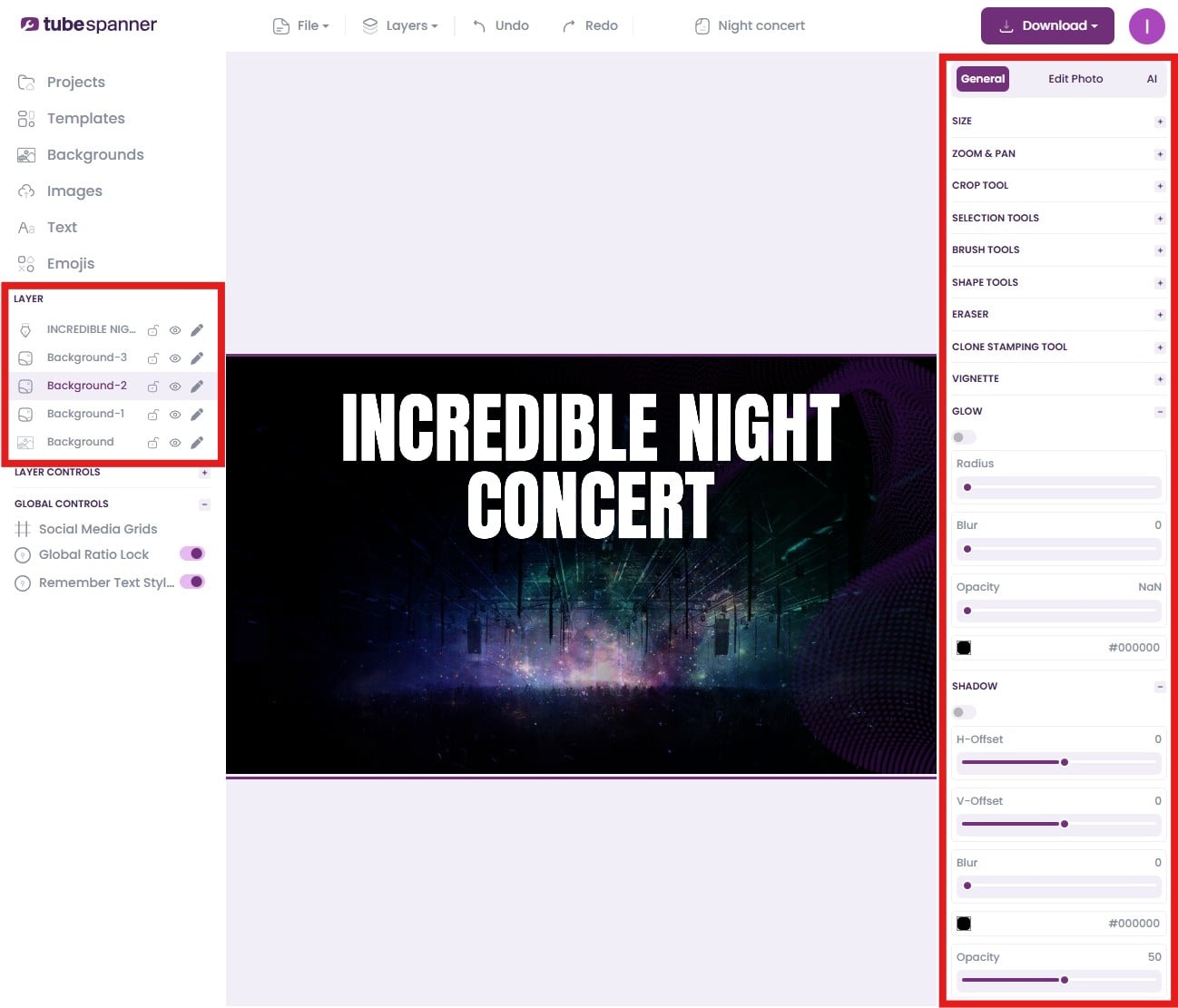
Body
The second way to reach the Thumbnail Editor is through the Inspiration/Homerun tool.
Type in a title into Homerun to find videos that are performing well beyond their channel average. See a thumbnail that you like? Click on "Create variation." In our example, we'll be using a thumbnail from Linus Tech Tips.

A popup will appear showing the thumbnail you selected, the title, and a thumbnail description that's automatically filled in as the prompt. Below that, you'll have the option to select or upload an emotion image.
This is a photo of you or your avatar expressing the right emotion for the thumbnail. If you don't have one uploaded, TubeSpanner will use a random avatar. We'll be using the "Confidence or Cool" image to generate the next picture.
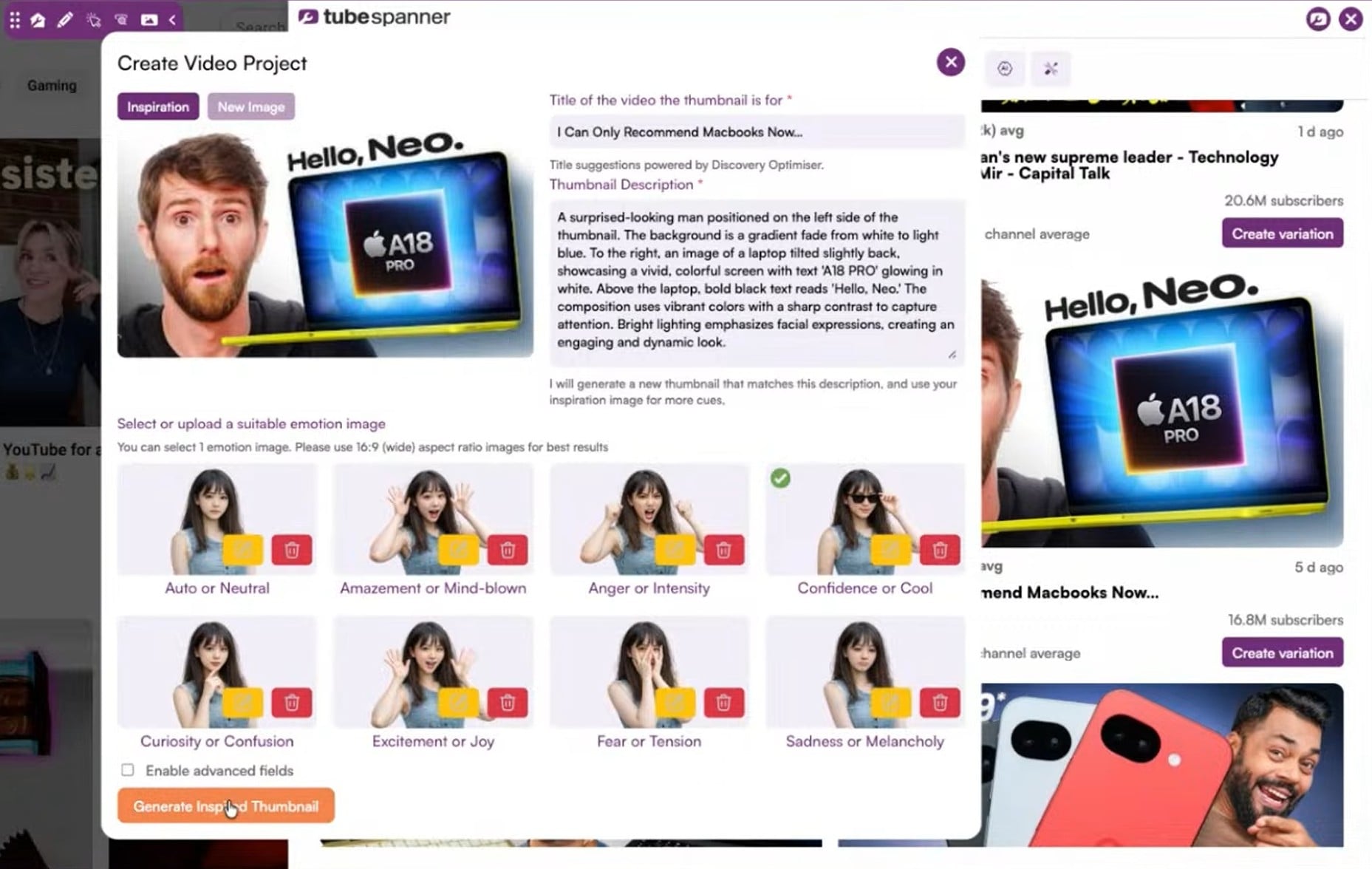
Once you've selected your emotion image, click "Generate Inspired Thumbnail," TubeSpanner will get to work.
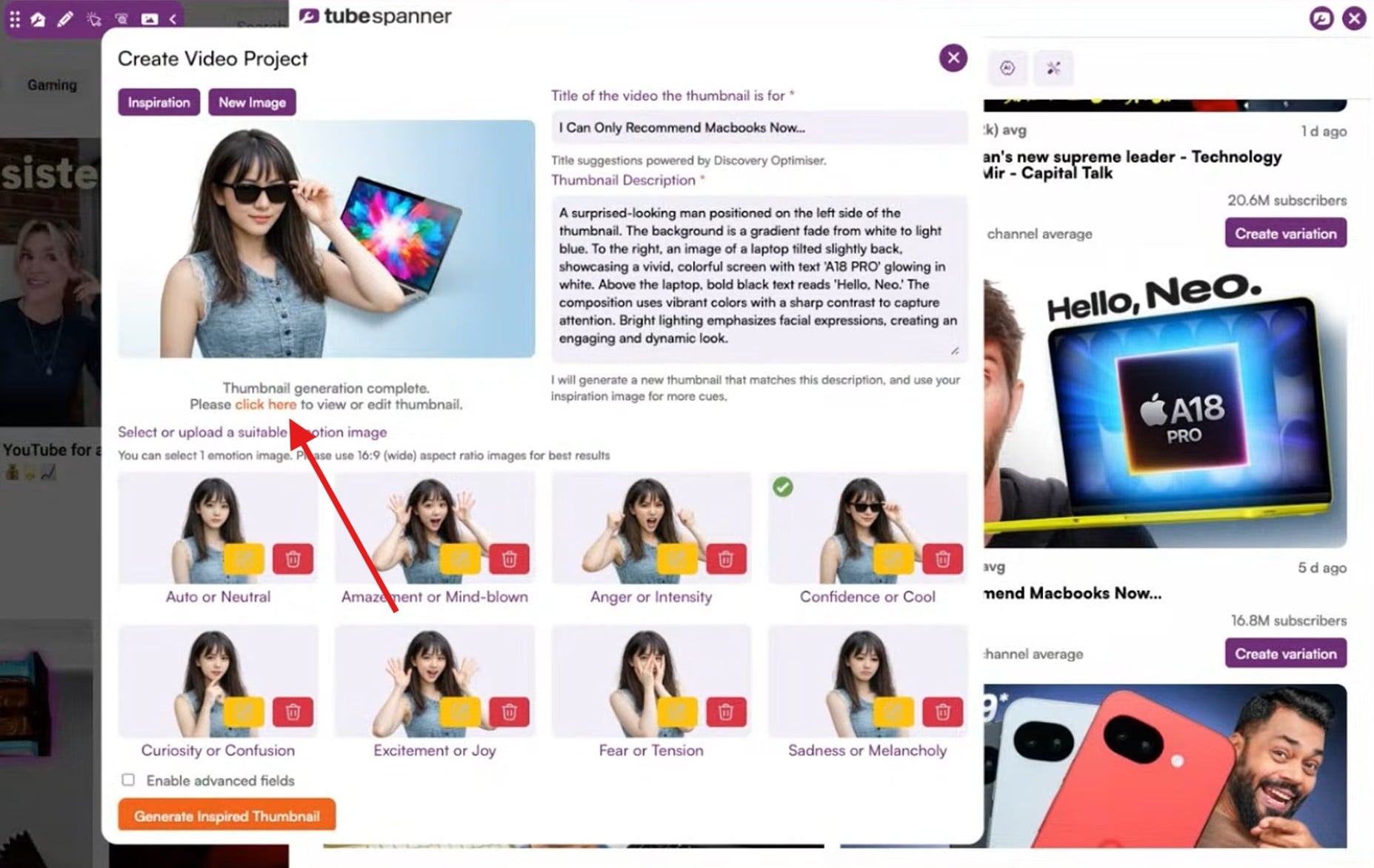
Keep generating until you find one you like, then click the "click here" button below the image to open it in the Thumbnail Editor.
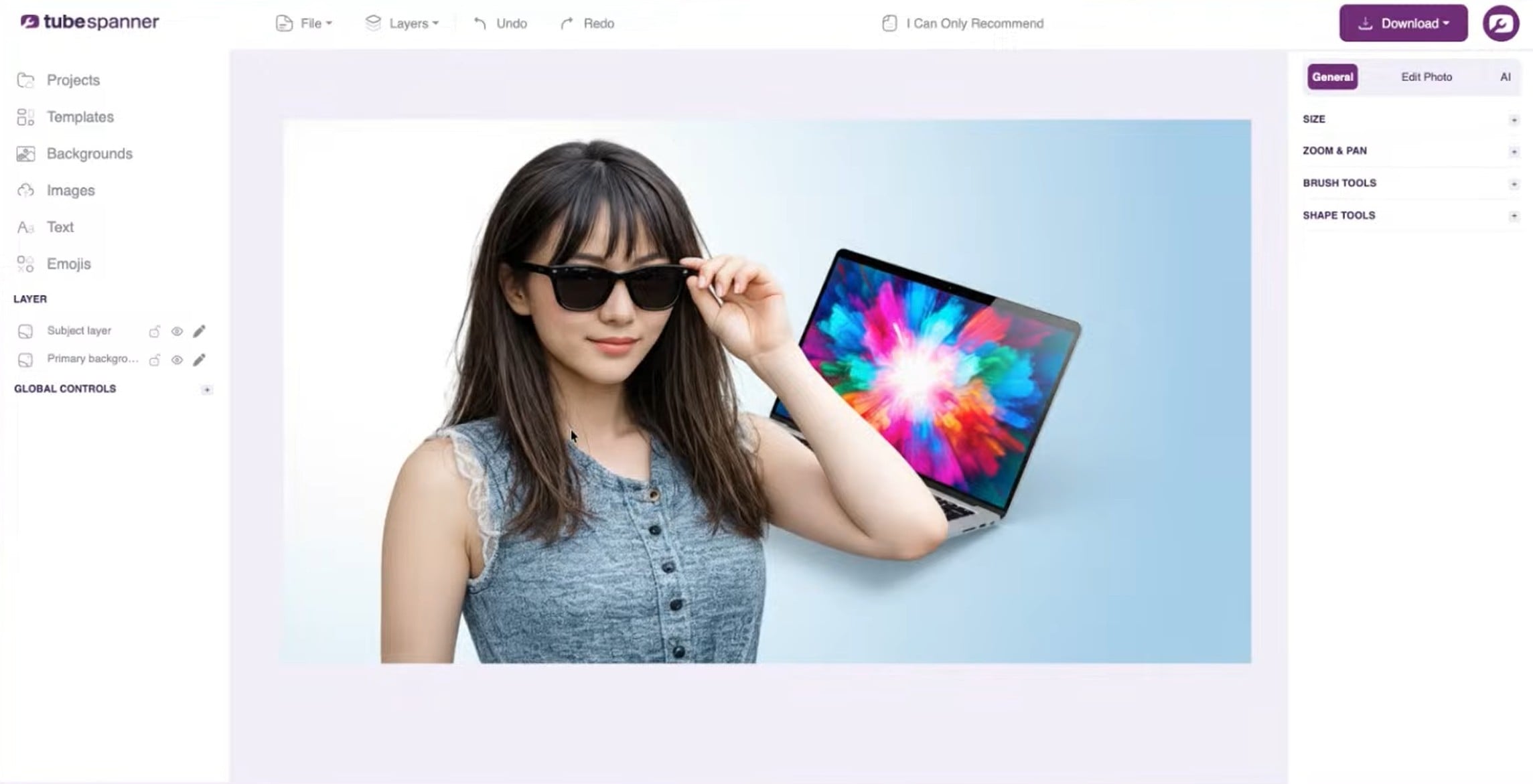
Just like templates, generated templates load into the editor as individual layers, so you can move and adjust each element freely.
One thing to keep in mind: TubeSpanner avoids generating text, so you'll need to add any text directly in the editor yourself.
Once you've got the thumbnail you want, click on the "Download" button on the top right button!